Sending arbitrary files directly from Firefox to your phone
The task
Automation is great. There's just something inherently beautiful about the process of stringing together a bunch of software, services, or tools to attain a simple goal, and finding a solid solution that just works™. One automation task I've been tinkering with lately is how to send an arbitrary file directly from my browser to my phone, with as little fuss as possible. I often browse reddit or just the web in general and find a funny video or image I want to keep on my phone to send to someone, or just to easily refer to back later. If I can just click a button and nearly immediately have a copy of the resource in question available on my phone, that would be really swell.
Luckily, the world of open source software provides a multitude of ways to accomplish this task; here's how I did it.
The requirements
To follow along at home, you'll need:
- A Linux-based computer
- An Android-based smartphone
- Firefox on your PC
- The Open With addon for Firefox
- yt-dlp (or youtube-dl or any of its forks) on your PC
- KDE Connect on your PC (ships with the KDE Plasma desktop, or can be installed on most other DEs through your package manager)
- KDE Connect on your phone
- Optional:
libnotifyfor notifications,pulseaudiofor audio alerts
The solution
First, install the Open With addon into Firefox. Once that's done, follow the instructions it gives to set it up, it requires a helper script to be able to launch external resources from within Firefox. Install the KDE Connect app on your phone, and pair it with your computer. Now that that's set up, you can make a couple of scripts that the Firefox addon will run whenever you invoke it. The first one is specifically for video content, the second is for files.
send-to-phone-yt-dlp.sh:
#!/bin/bash
deviceName="Fold 3"
ytdlpPath="/opt/yt-dlp"
savePath="/home/lars/Downloads/%(title)s [%(id)s].%(ext)s"
errorSound="/usr/share/sounds/ubuntu/notifications/Slick.ogg"
successSound="/usr/share/sounds/ubuntu/notifications/Positive.ogg"

notify-send -u low "yt-dlp" "Starting download with yt-dlp..." --icon=camera-video
ytdlpOutput=$($ytdlpPath -o "$savePath" "$1" 2>&1)

if [[ "$?" -gt 0 ]] ; then
    ytdlpOutput=$(echo $ytdlpOutput | tail -n1)
    notify-send -u normal "Error" "${ytdlpOutput}" --icon=emblem-warning
    paplay $errorSound
else
    notify-send -u normal "Success" "Download successful! ($1)" --icon=emblem-success
    fileNameResult=$($ytdlpPath --get-filename -o "$savePath" "$1")
    kdeconnect-cli -n "$deviceName" --share "$fileNameResult"
    paplay $successSound
fi
send-to-phone-wget.sh:
#!/bin/bash
deviceName="Fold 3"
saveDir="/home/lars/Downloads"
errorSound="/usr/share/sounds/ubuntu/notifications/Slick.ogg"
successSound="/usr/share/sounds/ubuntu/notifications/Positive.ogg"

notify-send -u low "Download" "Starting download with wget..." --icon=unknown
cd $saveDir
dlFilename=$(wget "$1" 2>&1 | grep Saving | cut -d ' ' -f 3 | sed -e 's/[^A-Za-z0-9._-]//g')

if [[ "$?" -gt 0 ]] ; then
    notify-send -u normal "Error" "Download failed!" --icon=emblem-warning
    paplay "$errorSound"
else
    notify-send -u normal "Success" "Download successful! ($1)" --icon=emblem-success
    kdeconnect-cli -n "$deviceName" --share "$dlFilename"
    paplay "$successSound"
fi
You'll need to do some changes to these scripts depending on your environment:
- Change the value of
deviceNameto the registered name of your phone in KDE Connect - Change the value of
ytdlpPathto point to the yt-dlp binary on your system - Change the value of
savePathto point to your preferred save location and filename of the videos downloaded by yt-dlp - Change the value of
saveDirto point to your preferred save directory of the files downloaded by wget - Change the value of
errorSoundandsuccessSoundto the appropriate paths if you are not running a flavour of Ubuntu, or remove them altogether if you do not want audio feedback. In that case, remove all lines starting withpaplayas well - Replace the lines starting with
paplaywith appropriate commands for your audio system if you do not use PulseAudio, but still want audio feedback - Remove the lines starting with
notify-sendif you do not want notifications or if you don't havelibnotifyinstalled
Don't forget to make the scripts executable! (chmod u+x /path/to/script.sh). Place them somewhere safe, i like /opt/scripts.
The next step is adding these scripts inside the Open With addon for Firefox. Click the Open With button in the toolbar, and click "Open With options". Click "Add browser". Fill in a name, and the path to the script with "%s" at the end, this is replaced with the URL when the script is invoked. Pick a custom icon if you'd like.
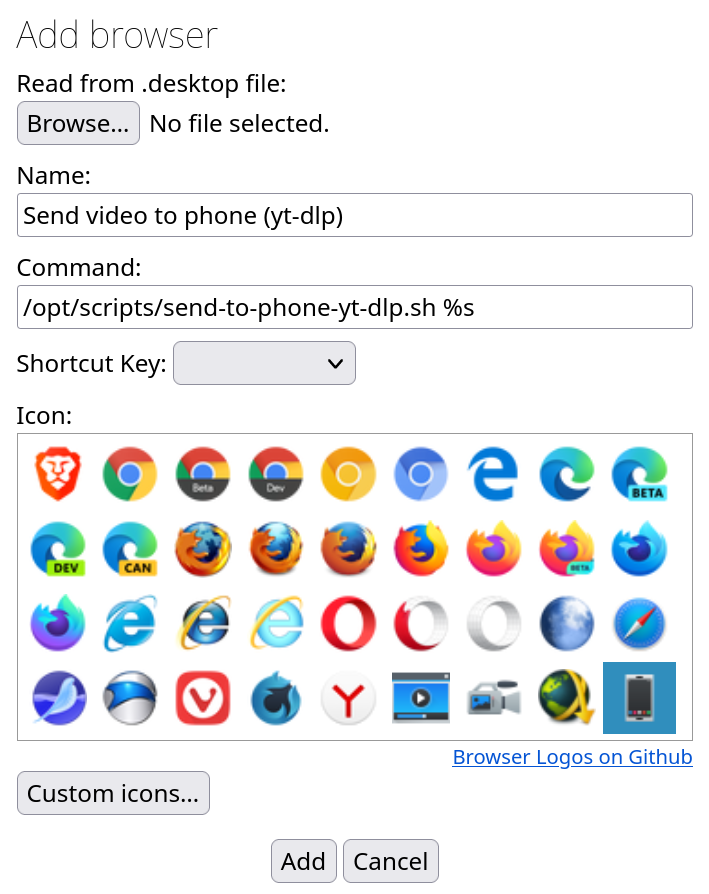
Repeat the same process for the other script, and you should end up with these two entries:
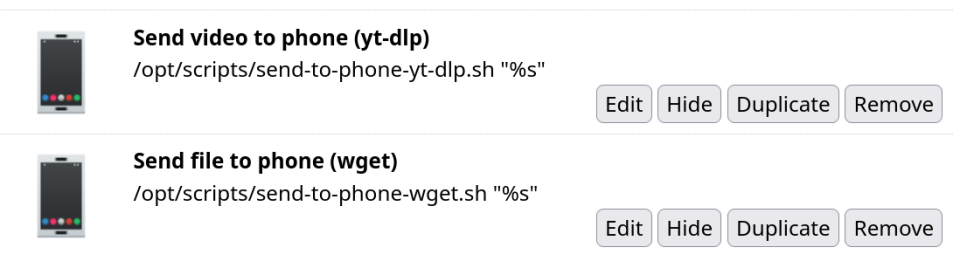
And that's really all there is to it. Now, whenever you are on a page that has a video you want to download and send to your phone, you can click the Open With toolbar icon, then "Send video to phone". If you're viewing a file, click the corresponding Open With item. This also works for links; If there's a link to an image or a file you want to download and send to your phone, just right click the link, go to "Open With", and click "Send file to phone (wget)", or pick the corresponding option if the link is to a video page.
Closing thoughts
Being able to send any video, picture or arbitrary file to my phone in two clicks is really convenient! The Open With addon is also really great for automating many other tasks that involve URLs, here are a couple of examples:
- If a page doesn't behave/work in Firefox, I wanna open it in another browser. I have the Flatpak version of Ungoogled Chromium installed for that, but opening that, manually copying the URL from FF, tabbing over to Chromium, then pasting it in the address bar is a chore. Just add it to Open With:
flatpak run com.github.Eloston.UngoogledChromium %s, and two clicks will open your current URL in the other browser (Note that this will NOT work if Firefox is running as a Flatpak, asflatpak runexecuted from within another flatpak will silently fail, in my experience, even with full permissions). - If I wanna send a link to JDownloader instead of opening it in Firefox, I can just add JDownloader to Open With, with the command
/bin/sh /opt/jd2/JDownloader2 %s
I'm sure there are many other uses for this approach as well, get creative!